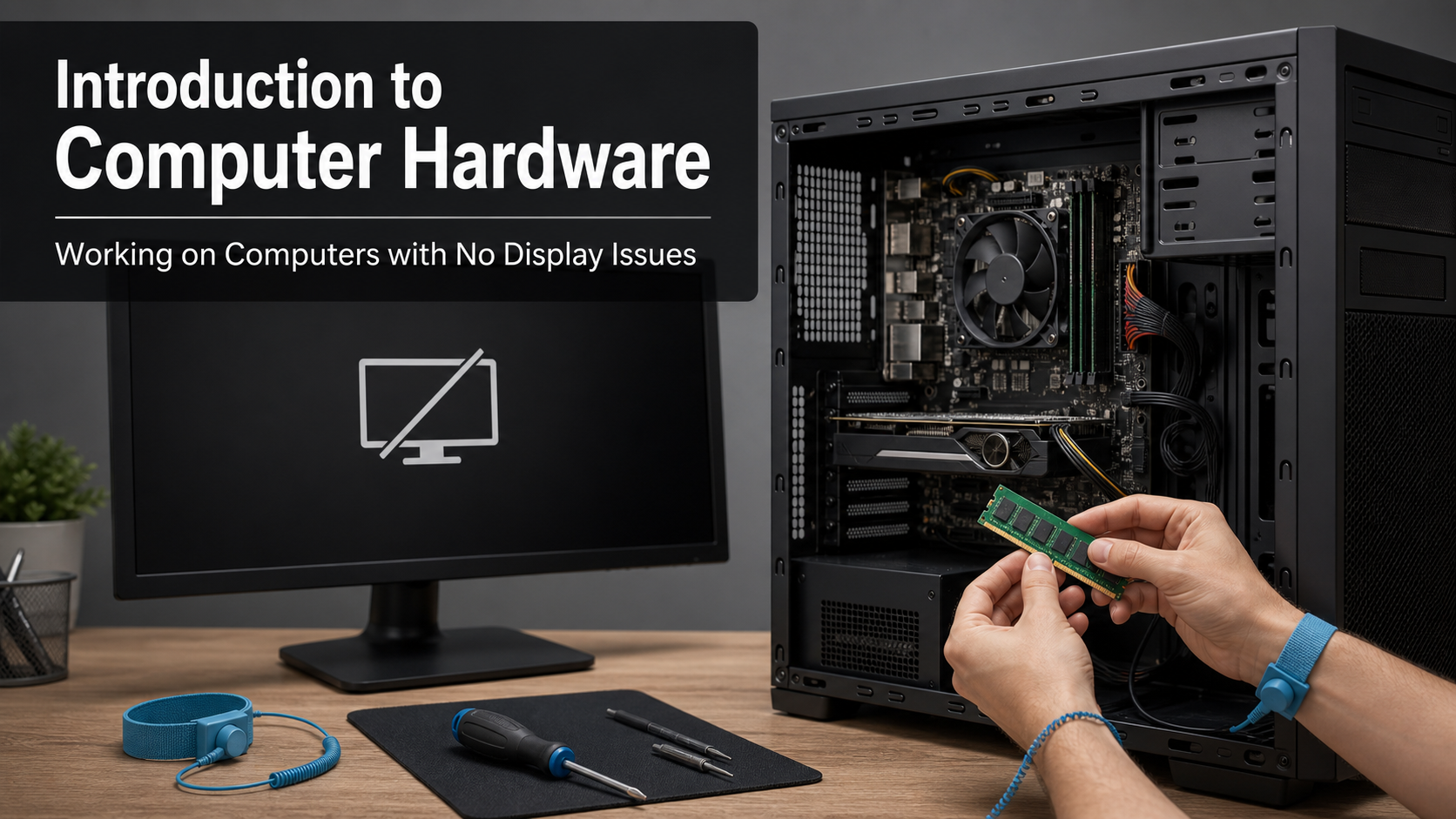
Introduction to Computer Hardware (Working on Computers with No Display Issues)
Wishlist Share

About Course

A video-led practical course that introduces computer hardware basics and teaches a step-by-step method for diagnosing and fixing desktop and laptop computers that power on but show no display.

What Will You Learn?

  • This practical course teaches you how to diagnose and fix desktop and laptop computers that power on but show no display. It combines short explainer videos with step‑by‑step demonstrations so beginners and junior technicians can follow a clear workflow from external checks to internal hardware testing.
  • You’ll learn how each hardware component contributes to producing an image, how to safely open and inspect a PC, and how to use a repeatable method to narrow down the cause of “no signal” or black‑screen problems.
  • What you’ll learn
  • Identify the main components inside a desktop PC and explain their roles in producing a display.
  • Trace the video signal path from integrated or dedicated graphics to the monitor.
  • Perform safe external checks on monitors, cables, and input settings before opening a computer.
  • Open a desktop case safely and carry out basic visual inspections for loose or damaged parts.
  • Reseat and test RAM modules and understand how memory faults can cause no‑display issues.
  • Check and test dedicated graphics cards and switch between GPU and integrated graphics.
  • Verify power supply connections and set up a minimal boot configuration for troubleshooting.
  • Reset BIOS/CMOS and interpret simple beep codes or diagnostic LEDs.
  • Adapt the no‑display workflow to laptops using safe, non‑invasive procedures.
  • Decide when to escalate a case to a senior technician or service center and how to document your findings.

Course Content

Topic 1: Computer Hardware Basics
Get familiar with the main parts of a desktop computer and how they work together.

  • Lesson 1: How a PCs Hardware Works Together
    00:00

Topic 2: Understanding the Display Path
Learn how the video signal travels from the computer to the monitor.

Topic 3: External Checks for No Display
Rule out monitor and cable problems before opening the computer.

Topic 4: Opening the Case Safely
Prepare and open a desktop PC safely to inspect internal components.

Topic 5: RAM and Graphics Checks
Focus on memory and graphics problems that commonly cause no-display cases.

Topic 6: Power Supply and Minimal Boot
Check power delivery and perform minimal configuration tests.

Topic 7: BIOS, CMOS, and POST Diagnostics
Use BIOS resets, beep codes, and diagnostic indicators to narrow faults.

Topic 8: Laptops with No Display
Apply safe, non-invasive checks for laptops that power on but show nothing.

Topic 9: Professional Judgment and Escalation
Know your limits and protect both customer and equipment.

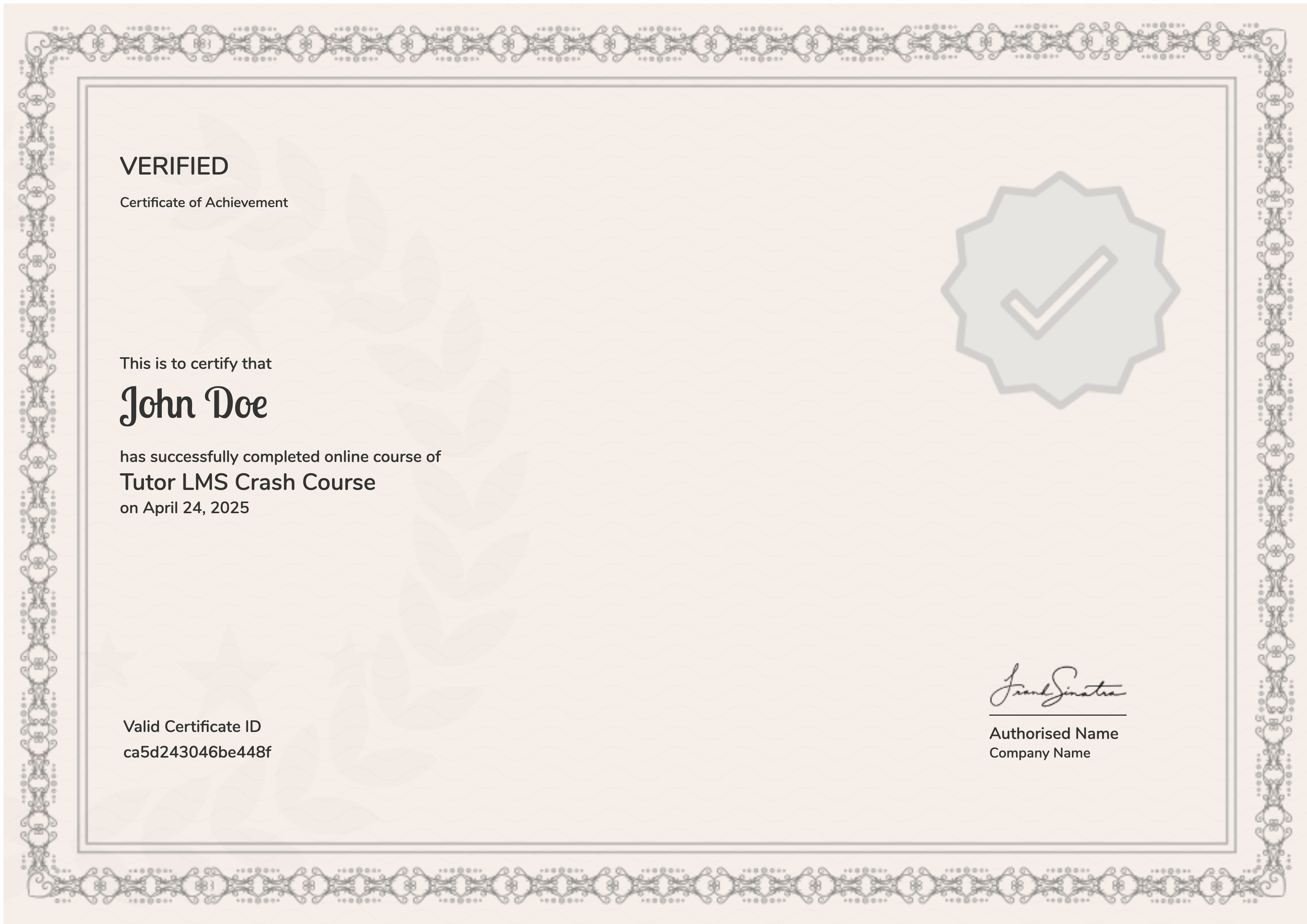
Earn a certificate

Add this certificate to your resume to demonstrate your skills & increase your chances of getting noticed.
selected template

Student Ratings & Reviews

No Review Yet
No Review Yet